

How to check which account a Cirra connection uses before a task acts
Check which account a Cirra connection uses before you let a task read or change records. A read-only check on a record you know settles it.
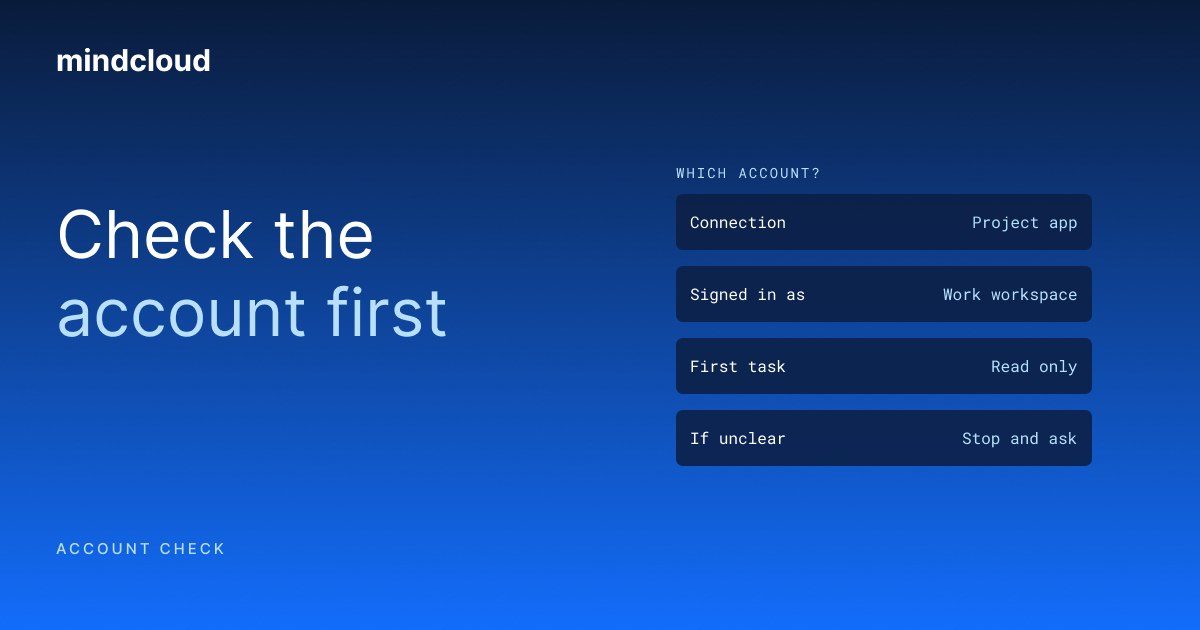
Two accounts for the same app can look reassuringly similar. One belongs to work. One belongs to a test workspace. Before you ask Cirra to do something in either, check which connection you mean. By the end, you should have a connection you recognize and a small read-only task that confirms it reaches the right place.
This is an account check, so leave changes out of the first task. Reading a known record is enough to show whether you are in the expected workspace.
What you need
A Cirra account. Starting is free.
An app connected in Cirra, and a record in it you can open yourself.
The name of the business account or workspace that record lives in.
1. Pick something you already recognize
Choose a record you can also open in the app itself. A project name, a known customer or a document title can work. Use something ordinary that does not require changing the record. Write down which business account or workspace contains it. That gives you an expected result before you start. Otherwise any plausible answer can look like confirmation.
Show me the connections for our project app and what account each one belongs to.
The connections for the app, with the account each one uses, so you can pick the one you mean.
Which of these belongs to the work workspace?
2. Check the connection
Open Cirra's connections area and find the app. Check the account information shown for the connection against the account you intend to use. If you need a new connection, follow the app's sign-in prompts using the intended account. The connection guide in the docs describes that setup. Avoid approving a familiar-looking account before checking which workspace it represents.
Show me which account the project app connection is signed in with.
The account the connection uses. If you cannot establish the identity from the information available, resolve that first. A task instruction cannot turn an unknown connection into the right account.
Stop and ask me before switching accounts if this is not the work workspace.
3. Make the first task read-only
Name the app, the intended workspace and the record you chose. The request below is an example. Replace the app and project with your own. The important parts are the known record, the limited output and the instruction to stop if the account is unclear.
Use the work account connected to our project app. Find the project named Autumn onboarding and show its name and status. Do not change anything. If you cannot tell which account is intended, ask me before continuing.
The record you expected, from the account you intended, or a stop and a question.
Do the same check for the other app I use every week.
4. Compare with the app, then keep the account explicit
Open the same record directly in the source app. Check that its workspace and status match what you expected. A record with the same name in another account is not the same record. If the result differs, inspect the connection before rewriting the whole task. The problem may be the account being used rather than the way you asked.
Name the intended account in this task: use the work account for every step.
The task you want to run, with the account named in it. Passing a read check does not approve a different action. Review a task that changes records separately.
List every task I run regularly that does not name its account.
What it doesn't do yet
This check does not add permissions to the connected account or guarantee that every action in the app is available.
It does not establish that an account-discovery or connection-renaming feature has shipped. Use the connection information available in your workspace and stop when the identity is unclear.
Repeat the identity check when you reconnect an app or move work to another workspace. The familiar app name can stay the same while the account behind it changes.
Check the busiest app first
Take the app your tasks touch most, run the read-only check and name the account in the task. If you are saving a repeated task next, read How to save a task you repeat in Cirra as a skill.