App Steps
Workflow App Steps are the heart and soul of workflows in general. Put simply, an App Step is the workflow representation of an API App Action, allowing you to take advantage of every capability that has been built to-date.
To create an App Step, you simply creation a step like any other, but instead of selecting a mapper or utility step, you pick from the list of available apps. The procedure is as follows:
Creating an App Step with AI
The first step in creating an App Step with AI is to create a new step.

Once you have created it, you now have the ability to generate the entire step with AI, by clicking on the line below the step:

This will then give you a prompt where you can describe what you want to do

The prompt will then automatically create the next step based on your prompt, with the appropriate configuration!
Important Note
Creating App Steps with AI gets you 90% of the way there, but it’s important to review the Action and Configuration (following the relevant below steps to create an App Step manually) to ensure that everything is correct and functioning as intended.
Creating an App Step Manually
Click “Add a Step”
First, create a step.
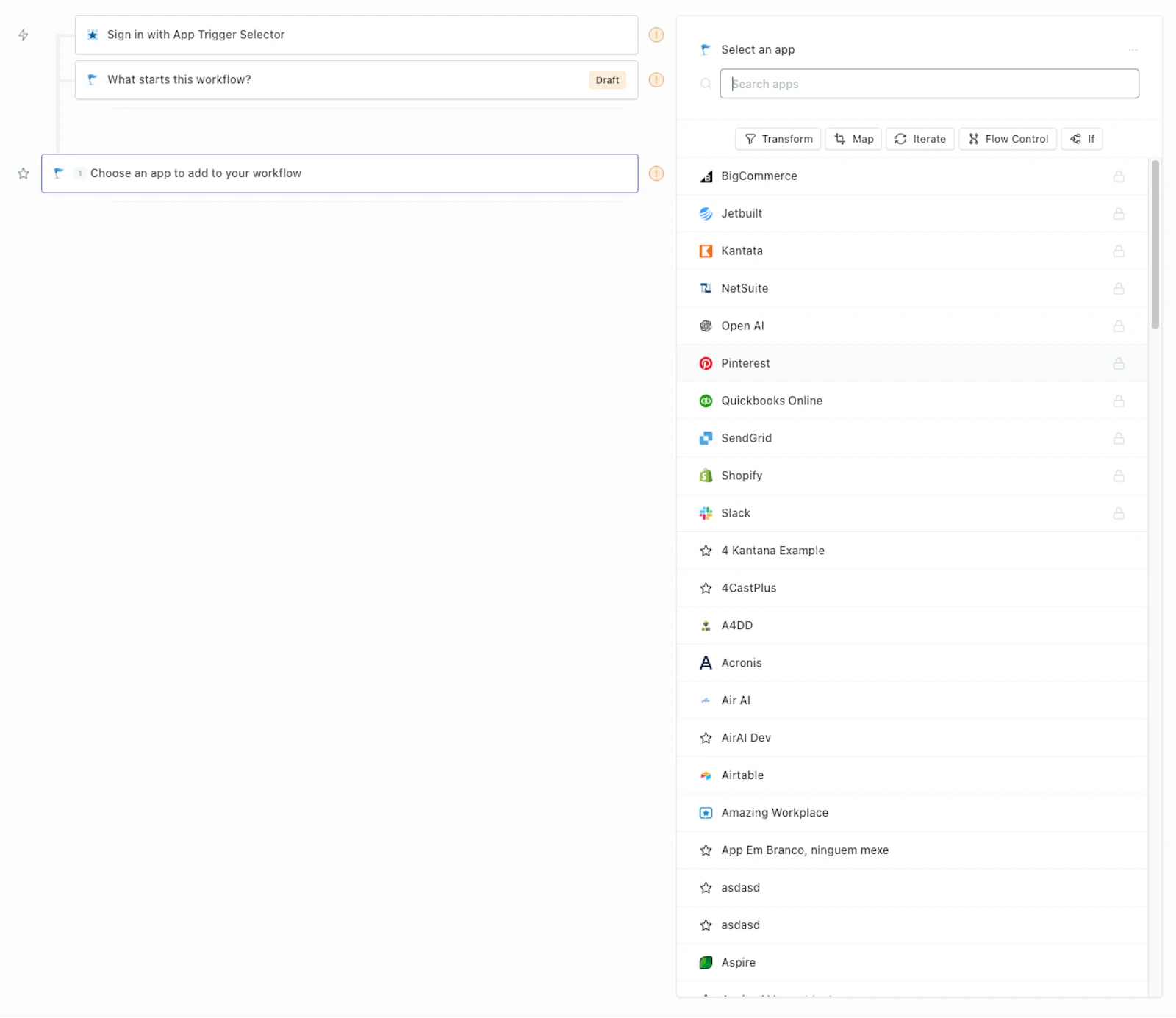
Select your App
Select which app you plan to use, other than a utility step or mapper.
Authenticate the App
If you have not yet authenticated the App within the client account, you will need to create an Authentication using one of the app’s authentication methods:
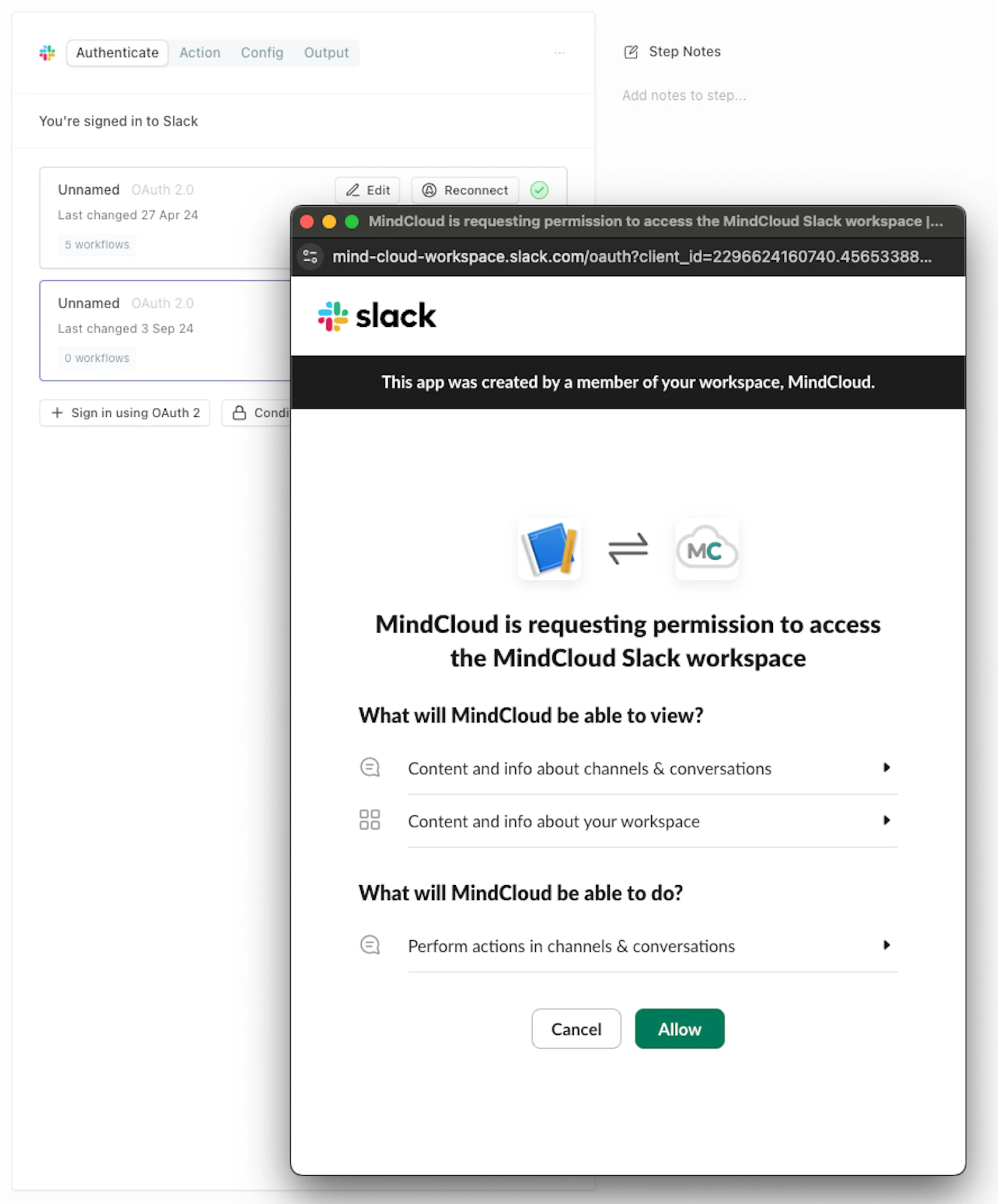
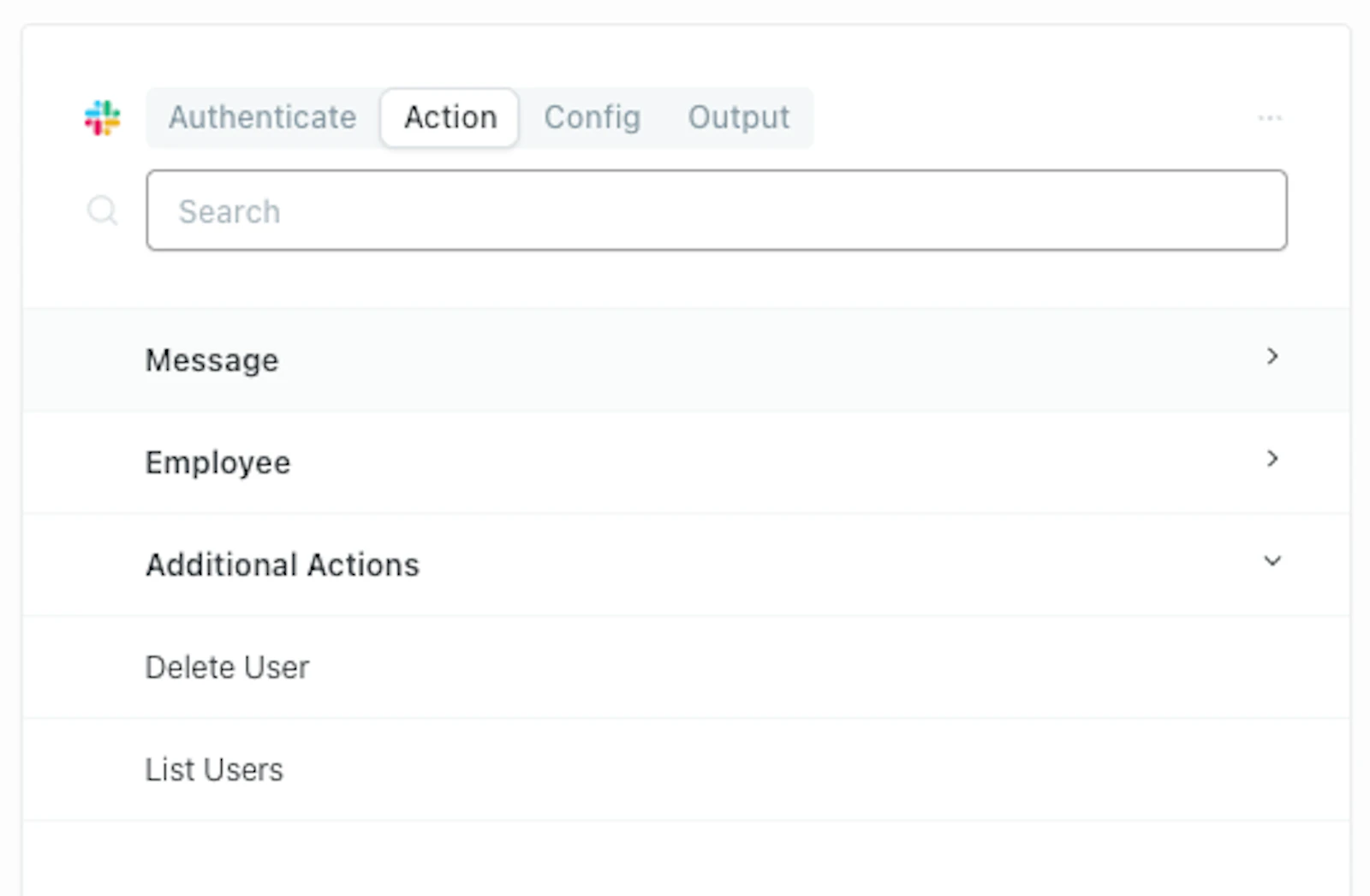
Select the Action
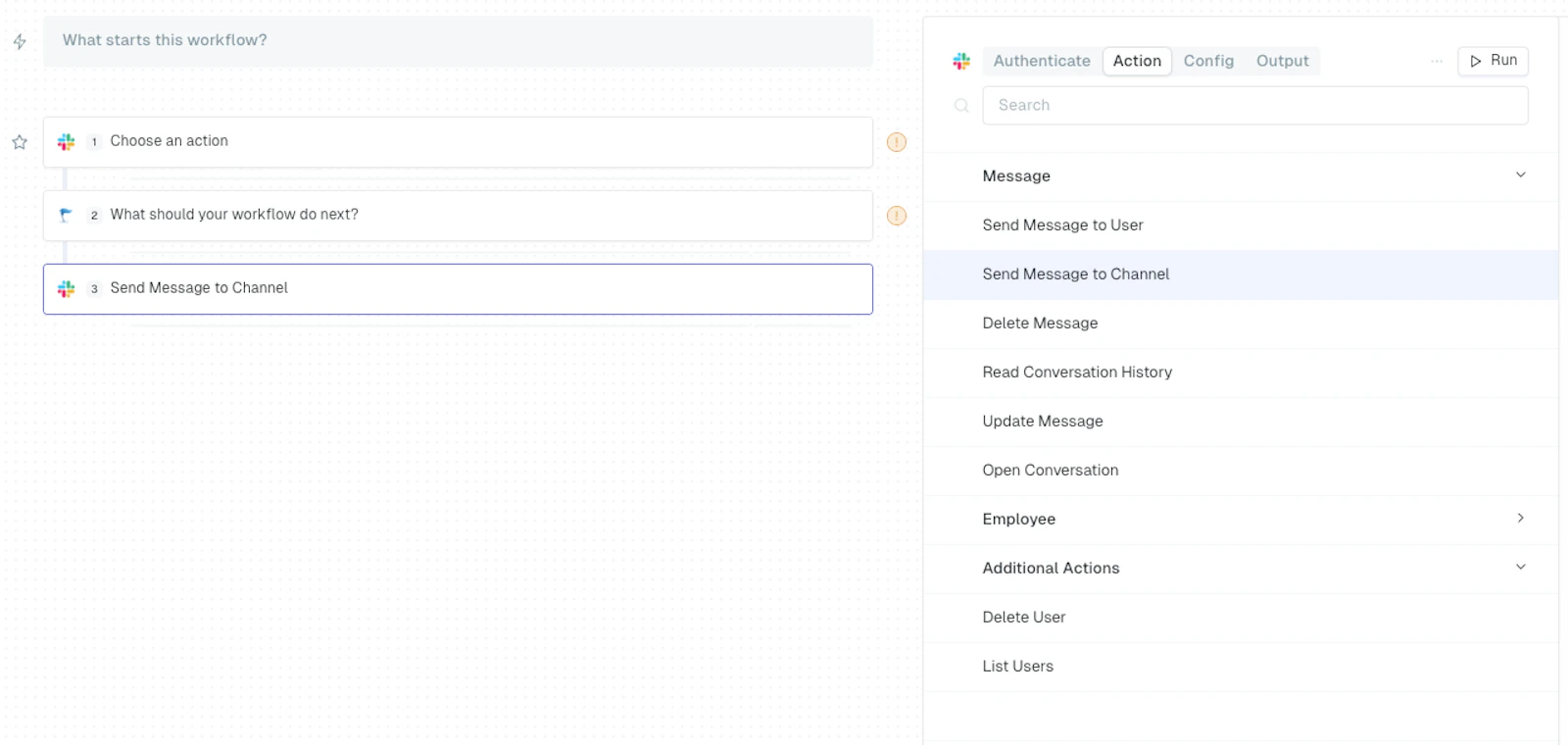
Select the Action from the list of available actions within the App (if an action is missing, you can create it but adding to the App itself using App Actions).
Configure the Action
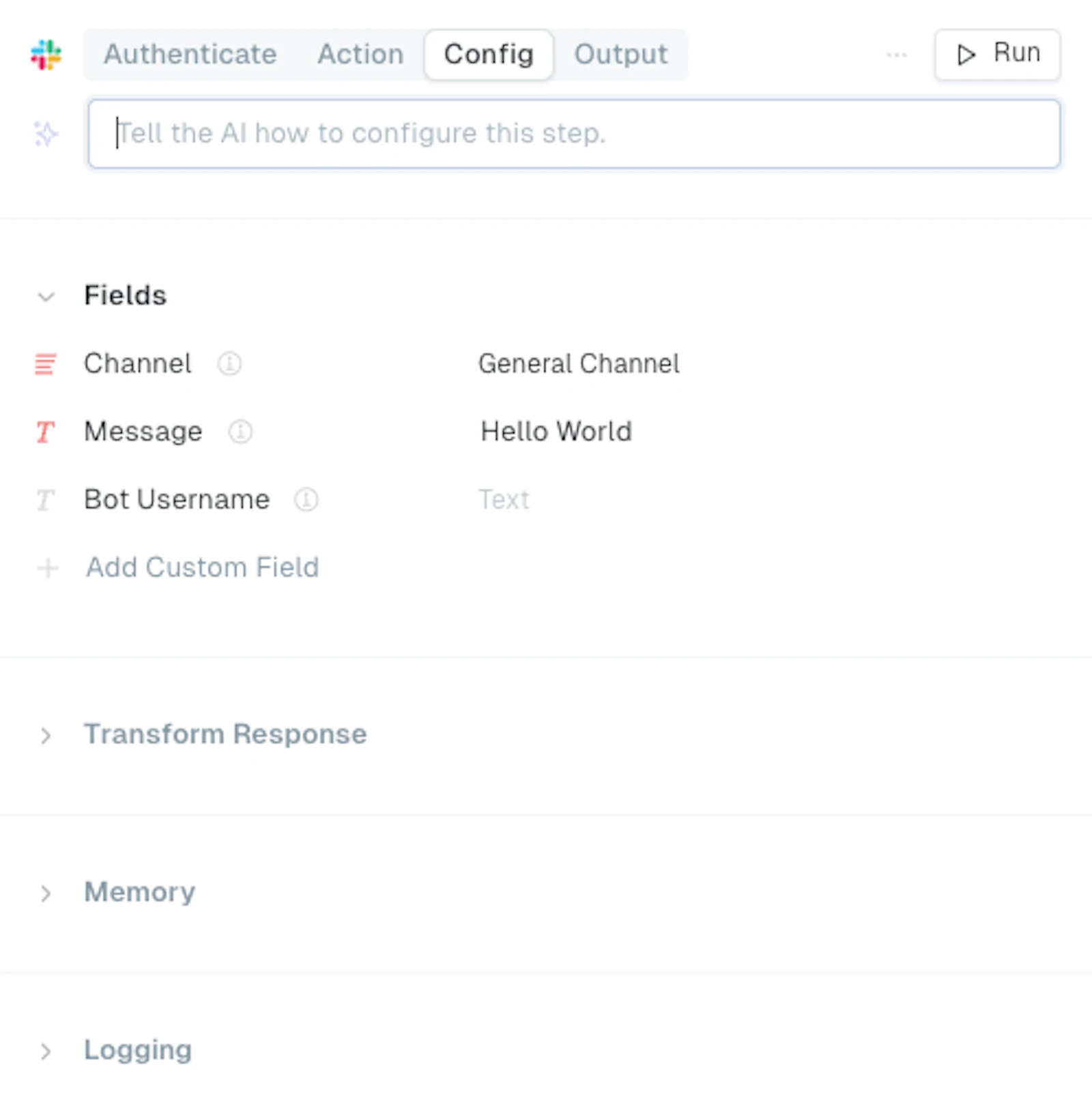
Configure the action with all needed arguments. Reference Workflow Step Fundamentals for more information on accessing the data needed to configure steps when using data from prior steps.
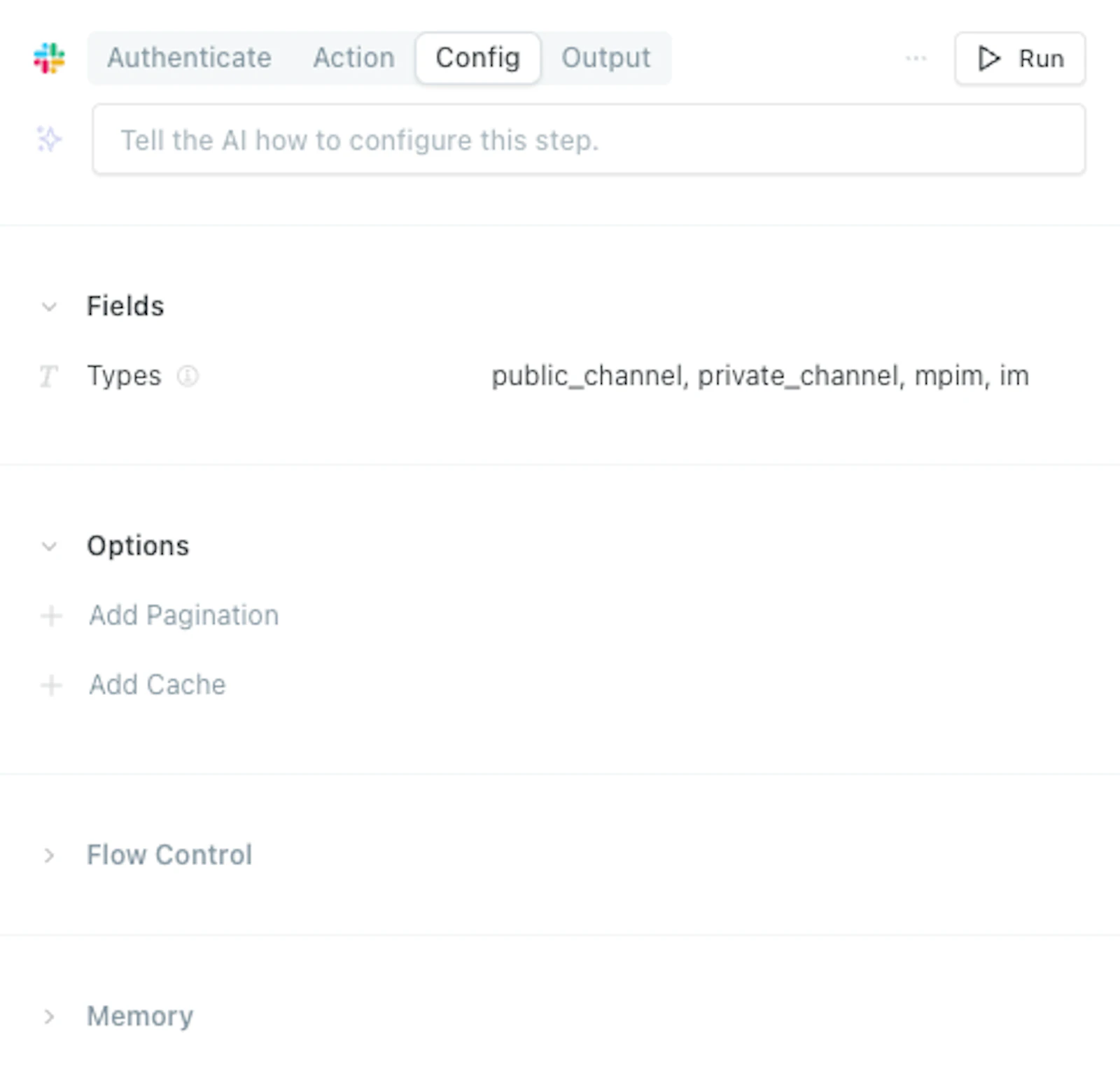
Run the Action
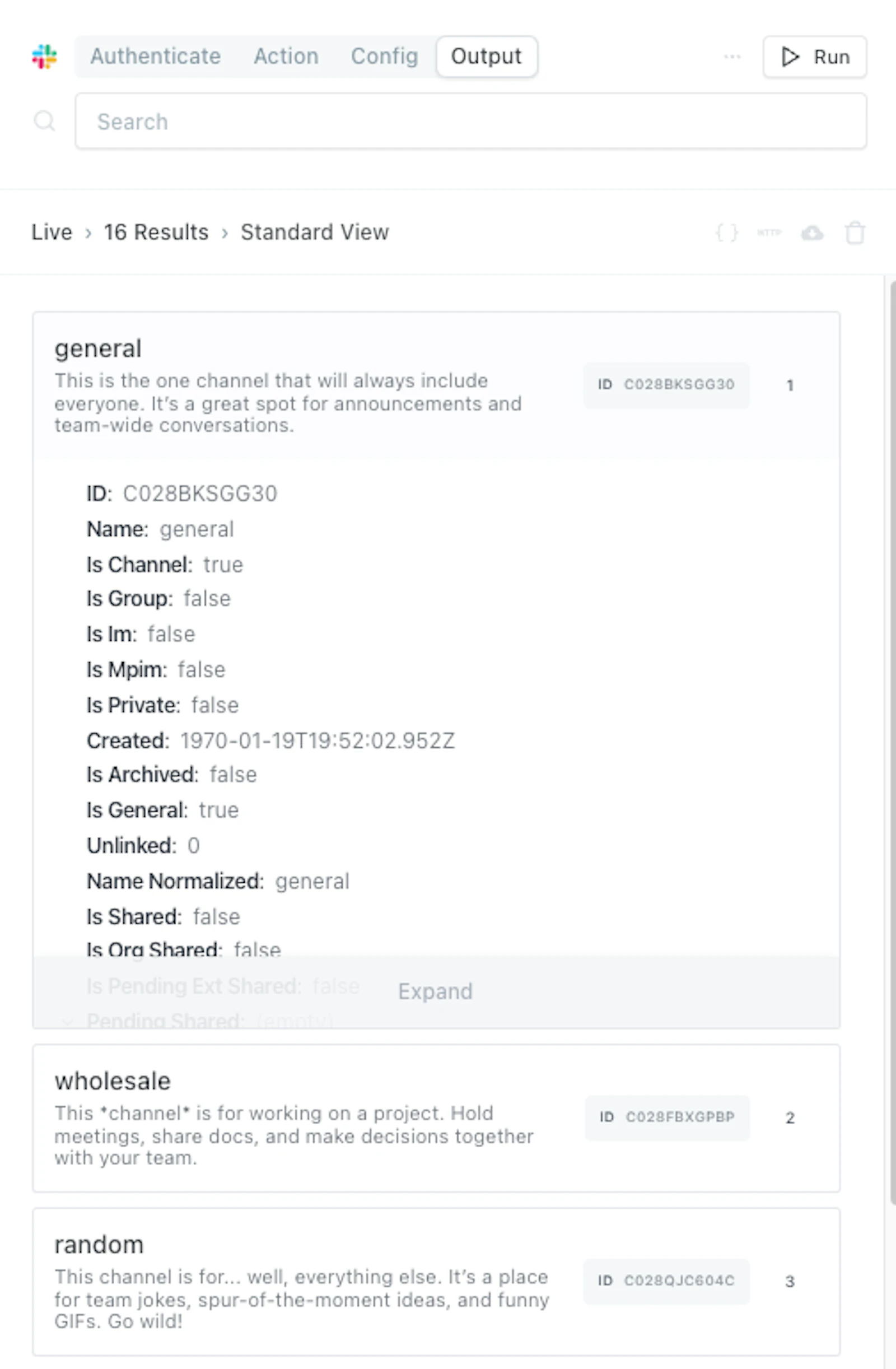
Run the action, and see the output.