




















Connect your Address Auto-Complete by Fetchify and Google Drive. The first step is to give Cirra access to your applications.
How Cirra automates work
MindCloud Cirra gives your workplace superpowers.
Use her to powerhouse through your Address Auto-Complete by Fetchify and Google Drive work.
Teach Cirra to work between them. Simply explain what you want done between them and how you use them.
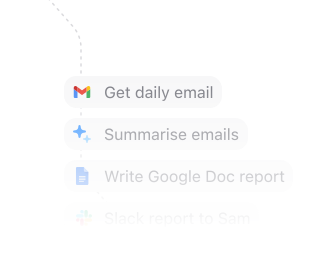
Automate that work. All your apps will talk to each other and work together. No technical knowledge needed.
Every action you need
Access 14 actions between Address Auto-Complete by Fetchify and Google Drive.
Can’t find an action you need? Let us know.


Frequently asked questions
New to MindCloud? We've got you. Here are some answers to common questions about how MindCloud works with Address Auto-Complete by Fetchify and Google Drive.
Connect all of your apps, not just some of them.
You can't automate business processes end-to-end if you can only connect to half of them.
 Request an inviteJoin the early access list for the app network built to cover the workflows your business actually runs.
 Talk to an expertWork with a MindCloud specialist to map the systems, actions, and automations your team needs next.
 Get updatesFollow new app coverage, product launches, and practical integration notes from the MindCloud team.