




















Connect your QuickBooks Online - Accounting and Google Drive. The first step is to give Cirra access to your applications.
Automate your first task
Use MindCloud Cirra to make QuickBooks Online - Accounting and Google Drive talk.
Here are some common ways to automate work between them.
How Cirra automates work
MindCloud Cirra gives your workplace superpowers.
Use her to powerhouse through your QuickBooks Online - Accounting and Google Drive work.
Teach Cirra to work between them. Simply explain what you want done between them and how you use them.
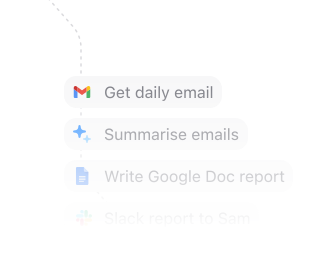
Automate that work. All your apps will talk to each other and work together. No technical knowledge needed.
Every action you need
Access 56 actions between QuickBooks Online - Accounting and Google Drive.
Can’t find an action you need? Let us know.
Create AttachmentCreate attachment in QuickBooks Online - Accounting.Create eCheckCreate echeck in QuickBooks Online - Accounting.Create EstimateCreate estimate in QuickBooks Online - Accounting.Create ItemCreate item in QuickBooks Online - Accounting.Create Purchase OrderCreate purchase order in QuickBooks Online - Accounting.Enhanced Queryincluded application/textGet Balance SheetRun a get balance sheet action in QuickBooks Online - Accounting.Get DepositRetrieves the details of a Deposit object that has been previously created.Get ItemRun a get item action in QuickBooks Online - Accounting.Get Profit and Loss DetailsRun a get profit and loss details action in QuickBooks Online - Accounting.Get VendorRun a get vendor action in QuickBooks Online - Accounting.Get VendorsRun a get vendors action in QuickBooks Online - Accounting.QueryRun a query action in QuickBooks Online - Accounting.Query (depreciated)This is the Query endpoint.Create CustomerCreate customer in QuickBooks Online - Accounting.


Frequently asked questions
New to MindCloud? We've got you. Here are some answers to common questions about how MindCloud works with QuickBooks Online - Accounting and Google Drive.
Connect all of your apps, not just some of them.
You can't automate business processes end-to-end if you can only connect to half of them.
 Request an inviteJoin the early access list for the app network built to cover the workflows your business actually runs.
 Talk to an expertWork with a MindCloud specialist to map the systems, actions, and automations your team needs next.
 Get updatesFollow new app coverage, product launches, and practical integration notes from the MindCloud team.