



















Connect your SourceGeek for LinkedIn and Google Drive. The first step is to give Cirra access to your applications.
Automate tasks across SourceGeek for LinkedIn with Google Drive
Action
Action
Businesses automate real work through MindCloud every day.
Automate your first task
Use MindCloud Cirra to make SourceGeek for LinkedIn and Google Drive talk.
Here are some common ways to automate work between them.
Send a Google Drive notification when SourceGeek for LinkedIn receives a high-priority item.
Create a Google Drive follow-up from new qualified activity in SourceGeek for LinkedIn.
Copy new customer details from SourceGeek for LinkedIn into Google Drive.
Update the matching Google Drive item when a SourceGeek for LinkedIn status changes.
Start a review in Google Drive when SourceGeek for LinkedIn flags an exception.
Summarize new SourceGeek for LinkedIn activity and save it in Google Drive.
How MindCloud automates work
MindCloud uses Cirra to give your workplace superpowers.
Use her to powerhouse through your SourceGeek for LinkedIn and Google Drive work.
Teach Cirra to work between them. Simply explain what you want done between them and how you use them.
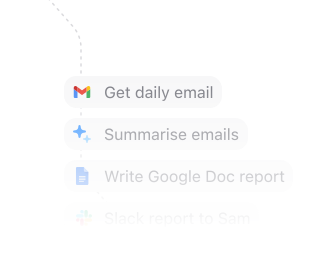
Automate that work. All your apps will talk to each other and work together. No technical knowledge needed.
Every action you need
Access 13 actions between SourceGeek for LinkedIn and Google Drive.
Can’t find an action you need? Let us know.
Get Drive User (Auth)Gets information about the authenticated user, the user's Drive, and system capabilities.List DocumentsFinds documents in Google Drive by query.Export FileExports a Google Workspace document from Google Drive.List SpreadsheetsFinds spreadsheets in Google Drive by query.Copy FileCreates a copy of a file in Google Drive.Create FileCreates a new file in Google Drive.List FilesList all Files in your Google Drive. Does not return Folders. Optionally filter for a specific file.Move FileMove a File to a Folder.Create FolderCreates a new Folder in Google Drive.Get Parent FolderReturns a Parent Folder for a File or Folder in Google Drive.List FoldersLists all Google Drive Folders. Optionally search folders you have access to in a Team Drive.List Shared DrivesRetrieves shared drives from Google Drive.Search Files and FoldersSearch Files & Folders in Google Drive.


Frequently Asked Questions
New to MindCloud? We've got you. Here are some answers to common questions about how MindCloud works with SourceGeek for LinkedIn and Google Drive.
Related integrations
Explore other ways to connect SourceGeek for LinkedIn with the apps your team already uses, or browse every SourceGeek for LinkedIn and Google Drive integrations.
Google SheetsGoogle Sheets connects app workflows across your app stack.GmailGmail connects app workflows across your app stack.SlackSlack connects app workflows across your app stack.Google CalendarGoogle Calendar connects app workflows across your app stack.NotionNotion connects app workflows across your app stack.Google FormsGoogle Forms connects app workflows across your app stack.MailchimpMailchimp connects app workflows across your app stack.StripeStripe connects app workflows across your app stack.


Connect all of your apps, not just some of them.
You can’t automate business processes end-to-end if you can only connect to half of them.
 Request an inviteJoin the early access list for the app network built to cover the workflows your business actually runs.
 Talk to an expertWork with a MindCloud specialist to map the systems, actions, and automations your team needs next.
 Get updatesFollow new app coverage, product launches, and practical integration notes from the MindCloud team.