






















Connect your Excel and Lusha Connect. The first step is to give Cirra access to your applications.
Automate tasks across Excel with Lusha Connect
Action
Action
Businesses automate real work through MindCloud every day.
Automate your first task
Use MindCloud Cirra to make Excel and Lusha Connect talk.
Here are some common ways to automate work between them.
Send a Lusha Connect notification when Excel receives a high-priority item.
Create a Lusha Connect follow-up from new qualified activity in Excel.
Copy new customer details from Excel into Lusha Connect.
Update the matching Lusha Connect item when a Excel status changes.
Start a review in Lusha Connect when Excel flags an exception.
Summarize new Excel activity and save it in Lusha Connect.
How MindCloud automates work
MindCloud uses Cirra to give your workplace superpowers.
Use her to powerhouse through your Excel and Lusha Connect work.
Teach Cirra to work between them. Simply explain what you want done between them and how you use them.
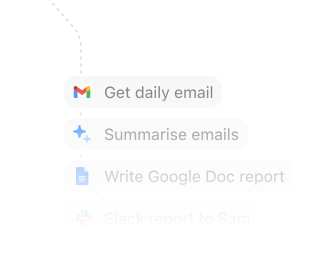
Automate that work. All your apps will talk to each other and work together. No technical knowledge needed.
Every action you need
Access 7 actions between Excel and Lusha Connect.
Can’t find an action you need? Let us know.


Frequently Asked Questions
New to MindCloud? We've got you. Here are some answers to common questions about how MindCloud works with Excel and Lusha Connect.
Related integrations
Explore other ways to connect Excel with the apps your team already uses, or browse every Excel and Lusha Connect integrations.
Google SheetsGoogle Sheets connects app workflows across your app stack.GmailGmail connects app workflows across your app stack.SlackSlack connects app workflows across your app stack.Google CalendarGoogle Calendar connects app workflows across your app stack.Google DriveGoogle Drive connects app workflows across your app stack.NotionNotion connects app workflows across your app stack.Google FormsGoogle Forms connects app workflows across your app stack.MailchimpMailchimp connects app workflows across your app stack.StripeStripe connects app workflows across your app stack.


Connect all of your apps, not just some of them.
You can’t automate business processes end-to-end if you can only connect to half of them.
 Request an inviteJoin the early access list for the app network built to cover the workflows your business actually runs.
 Talk to an expertWork with a MindCloud specialist to map the systems, actions, and automations your team needs next.
 Get updatesFollow new app coverage, product launches, and practical integration notes from the MindCloud team.