






















Connect your Google Drive and PDF4me Connect. The first step is to give Cirra access to your applications.
Automate tasks across Google Drive with PDF4me Connect
Action
Action
Businesses automate real work through MindCloud every day.
Automate your first task
Use MindCloud Cirra to make Google Drive and PDF4me Connect talk.
Here are some common ways to automate work between them.
Send a PDF4me Connect notification when Google Drive receives a high-priority item.
Create a PDF4me Connect follow-up from new qualified activity in Google Drive.
Copy new customer details from Google Drive into PDF4me Connect.
Update the matching PDF4me Connect item when a Google Drive status changes.
Start a review in PDF4me Connect when Google Drive flags an exception.
Summarize new Google Drive activity and save it in PDF4me Connect.
How MindCloud automates work
MindCloud uses Cirra to give your workplace superpowers.
Use her to powerhouse through your Google Drive and PDF4me Connect work.
Teach Cirra to work between them. Simply explain what you want done between them and how you use them.
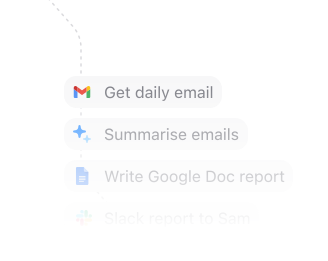
Automate that work. All your apps will talk to each other and work together. No technical knowledge needed.
Every action you need
Access 17 actions between Google Drive and PDF4me Connect.
Can’t find an action you need? Let us know.
Get Drive User (Auth)Gets information about the authenticated user, the user's Drive, and system capabilities.List DocumentsFinds documents in Google Drive by query.Export FileExports a Google Workspace document from Google Drive.Trash FileRun a trash file action in Google Drive.List SpreadsheetsFinds spreadsheets in Google Drive by query.Copy FileCreates a copy of a file in Google Drive.Create FileCreates a new file in Google Drive.Download FileRun a download file action in Google Drive.List FilesList all Files in your Google Drive. Does not return Folders. Optionally filter for a specific file.Move FileMove a File to a Folder.Upload FileUploads a new file to Google Drive.Create FolderCreates a new Folder in Google Drive.Get Parent FolderReturns a Parent Folder for a File or Folder in Google Drive.List FoldersLists all Google Drive Folders. Optionally search folders you have access to in a Team Drive.List Shared DrivesRetrieves shared drives from Google Drive.


Frequently Asked Questions
New to MindCloud? We've got you. Here are some answers to common questions about how MindCloud works with Google Drive and PDF4me Connect.
Related integrations
Explore other ways to connect Google Drive with the apps your team already uses, or browse every Google Drive and PDF4me Connect integrations.
Google SheetsGoogle Sheets connects app workflows across your app stack.GmailGmail connects app workflows across your app stack.SlackSlack connects app workflows across your app stack.Google CalendarGoogle Calendar connects app workflows across your app stack.NotionNotion connects app workflows across your app stack.Google FormsGoogle Forms connects app workflows across your app stack.MailchimpMailchimp connects app workflows across your app stack.StripeStripe connects app workflows across your app stack.CalendlyCalendly connects app workflows across your app stack.


Connect all of your apps, not just some of them.
You can’t automate business processes end-to-end if you can only connect to half of them.
 Request an inviteJoin the early access list for the app network built to cover the workflows your business actually runs.
 Talk to an expertWork with a MindCloud specialist to map the systems, actions, and automations your team needs next.
 Get updatesFollow new app coverage, product launches, and practical integration notes from the MindCloud team.